🏸 Referee Operations Manual - PlayPulse Scoring System
📋 Overview
This manual explains how referees can use the PlayPulse system to record match scores.
Step 1 Access the "Score" Menu
Click on "Score" (計分) from the left sidebar.
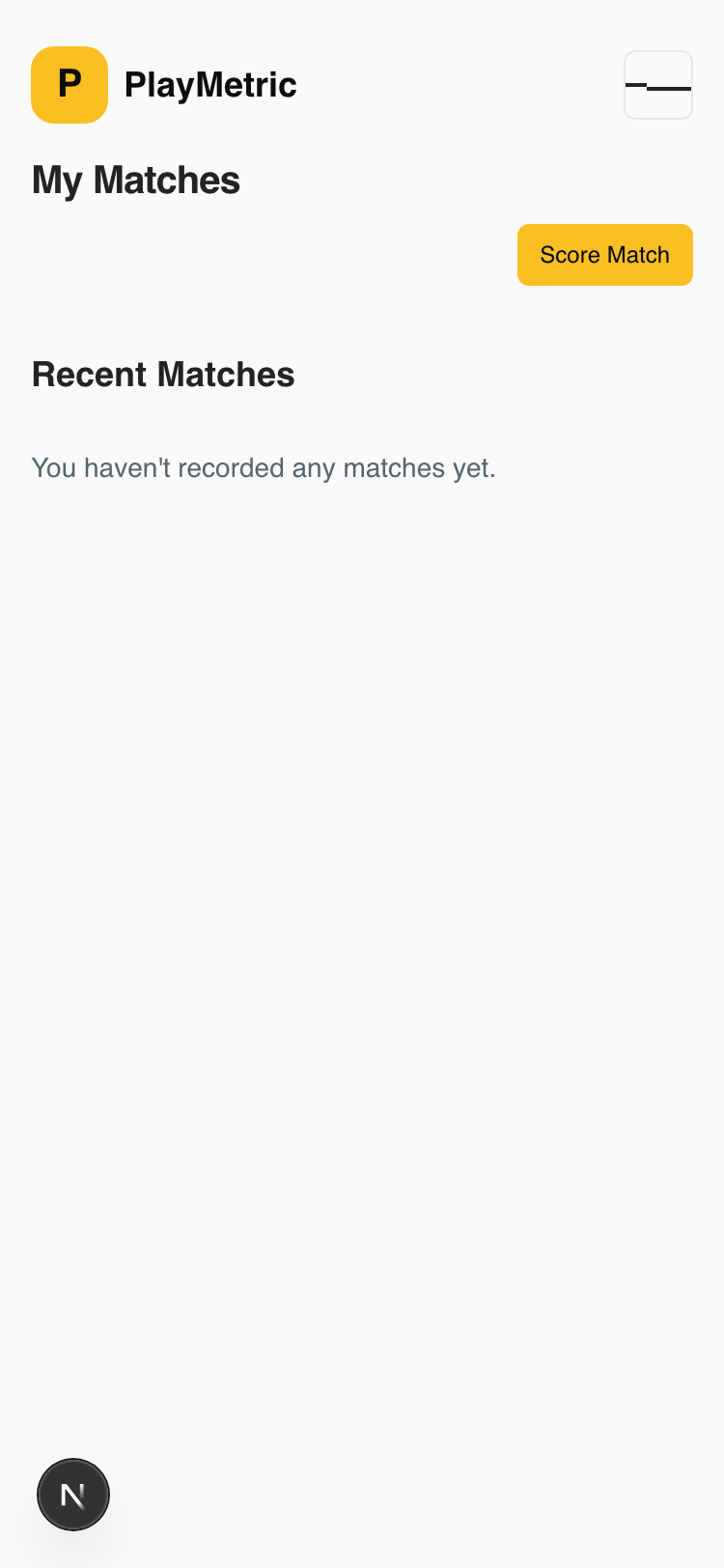
Step 2 Click "Score Match" Button
Click the yellow "Score Match" (試合スコア) button in the top right corner.
Step 3 Select "Browse Events"
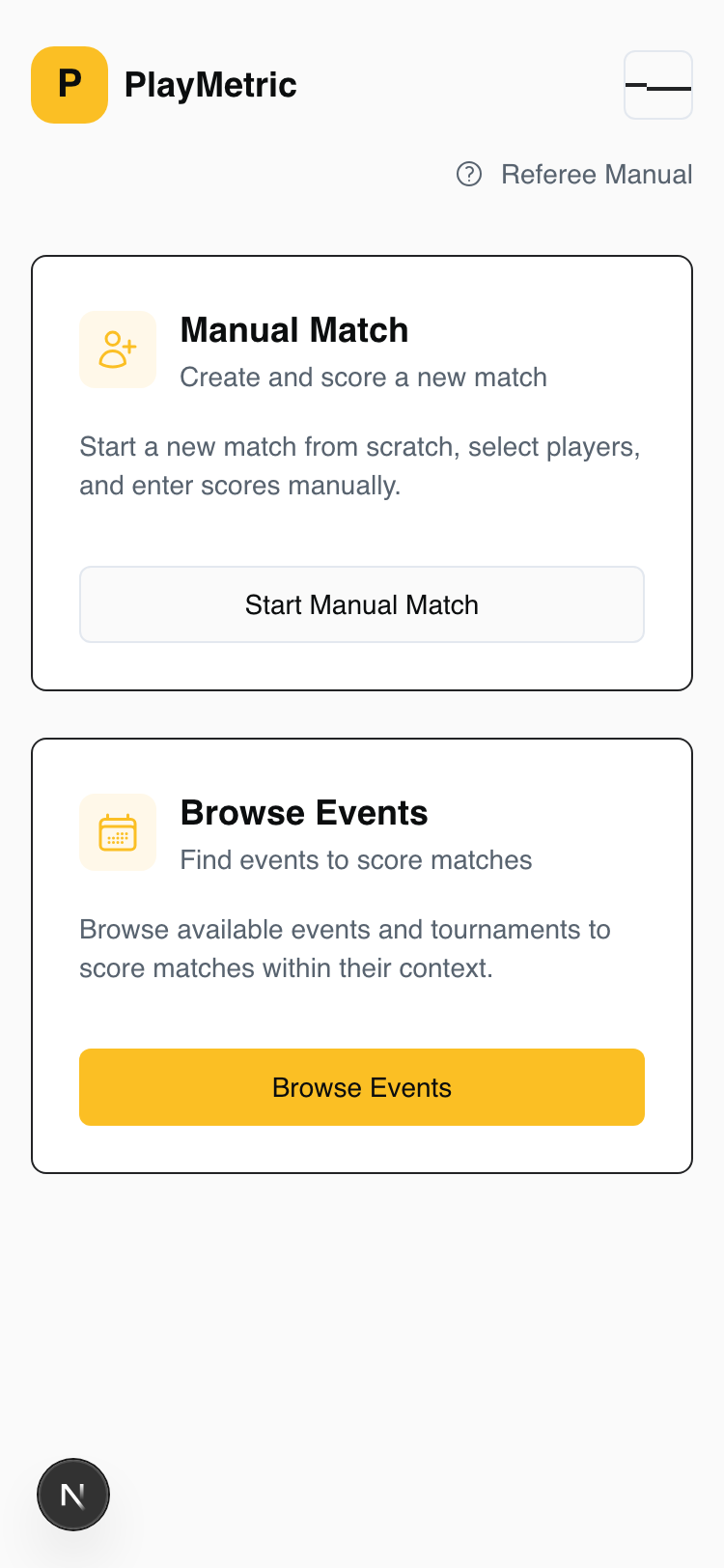
Two options will be displayed:
- Manual Match: Create a new match from scratch
- Browse Events: Select a scheduled match from an existing event ← Select this
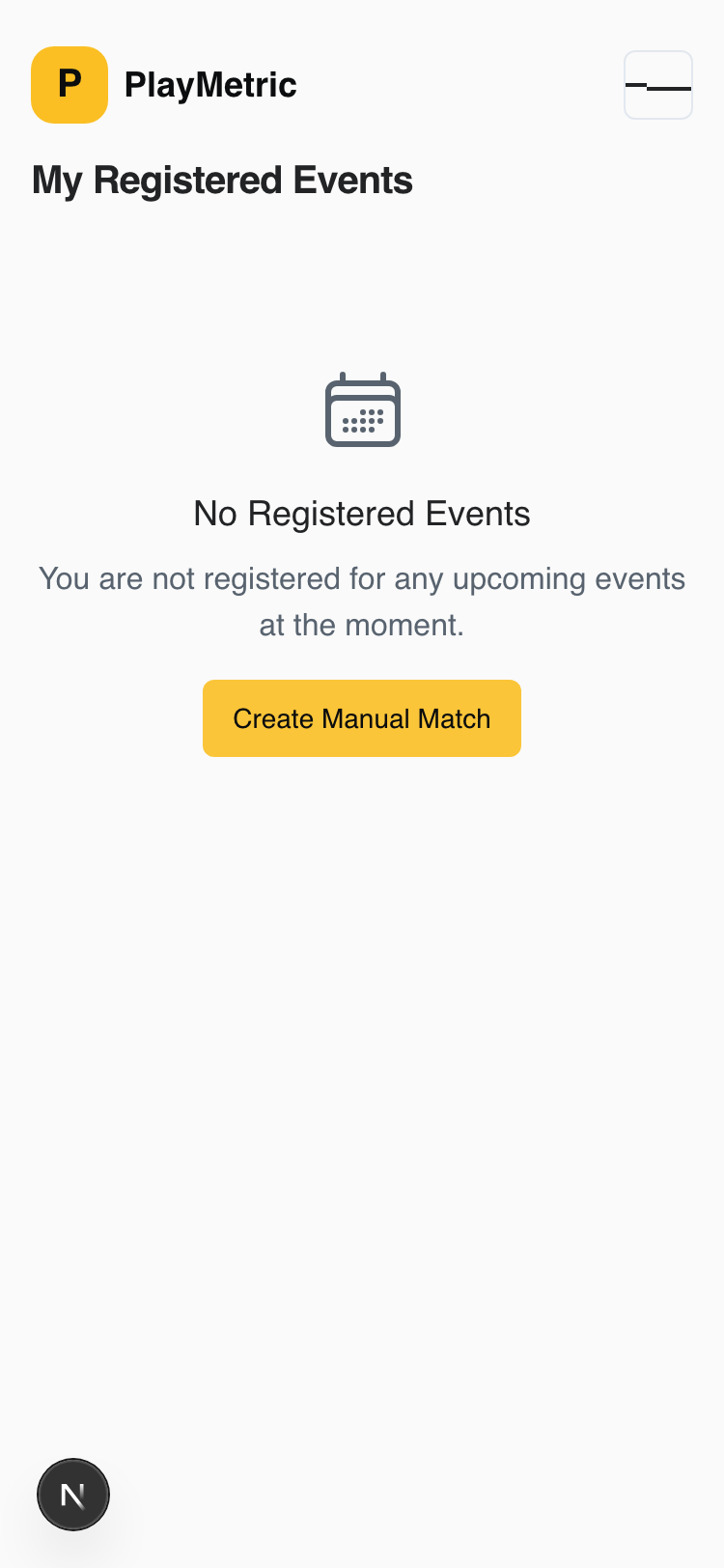
Step 4 Select an Event
From the list of registered events, click on the event you want to score.
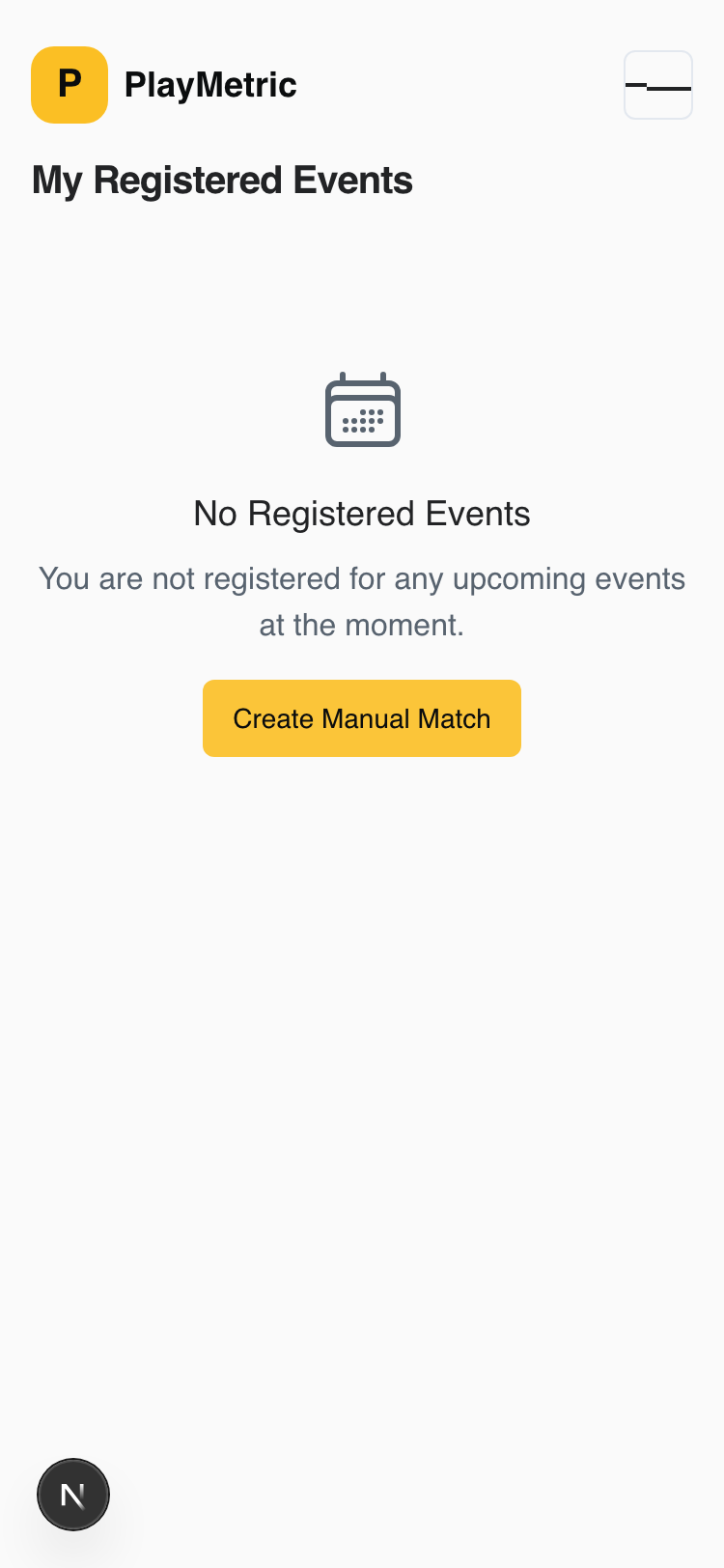
Step 5 Select a Match
All scheduled matches within the event will be displayed. Click on the match you need to score.
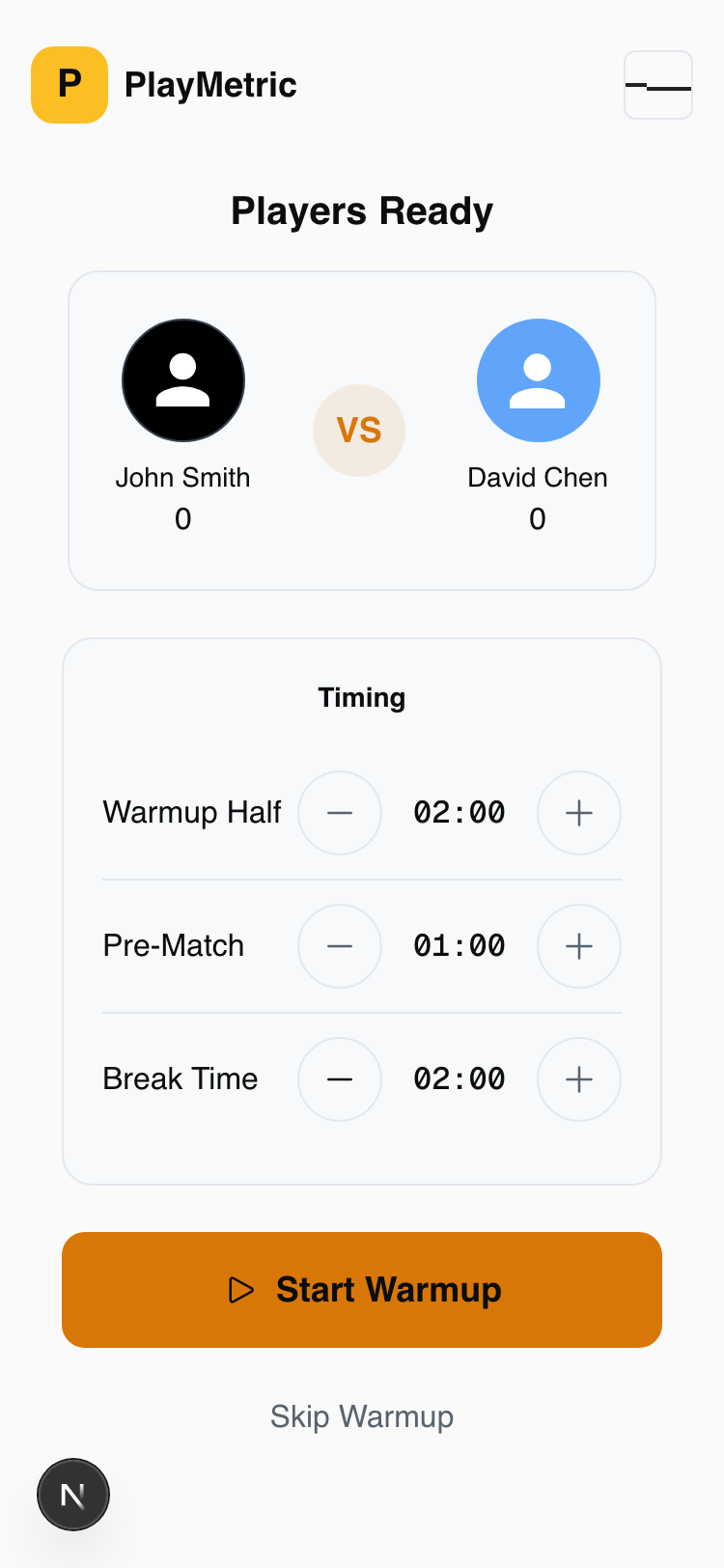
Step 6 Warmup Screen
The player preparation screen will appear. Choose either:
- Start Warmup: Begin a 3-minute warmup timer
- Skip Warmup: Proceed directly to serve selection
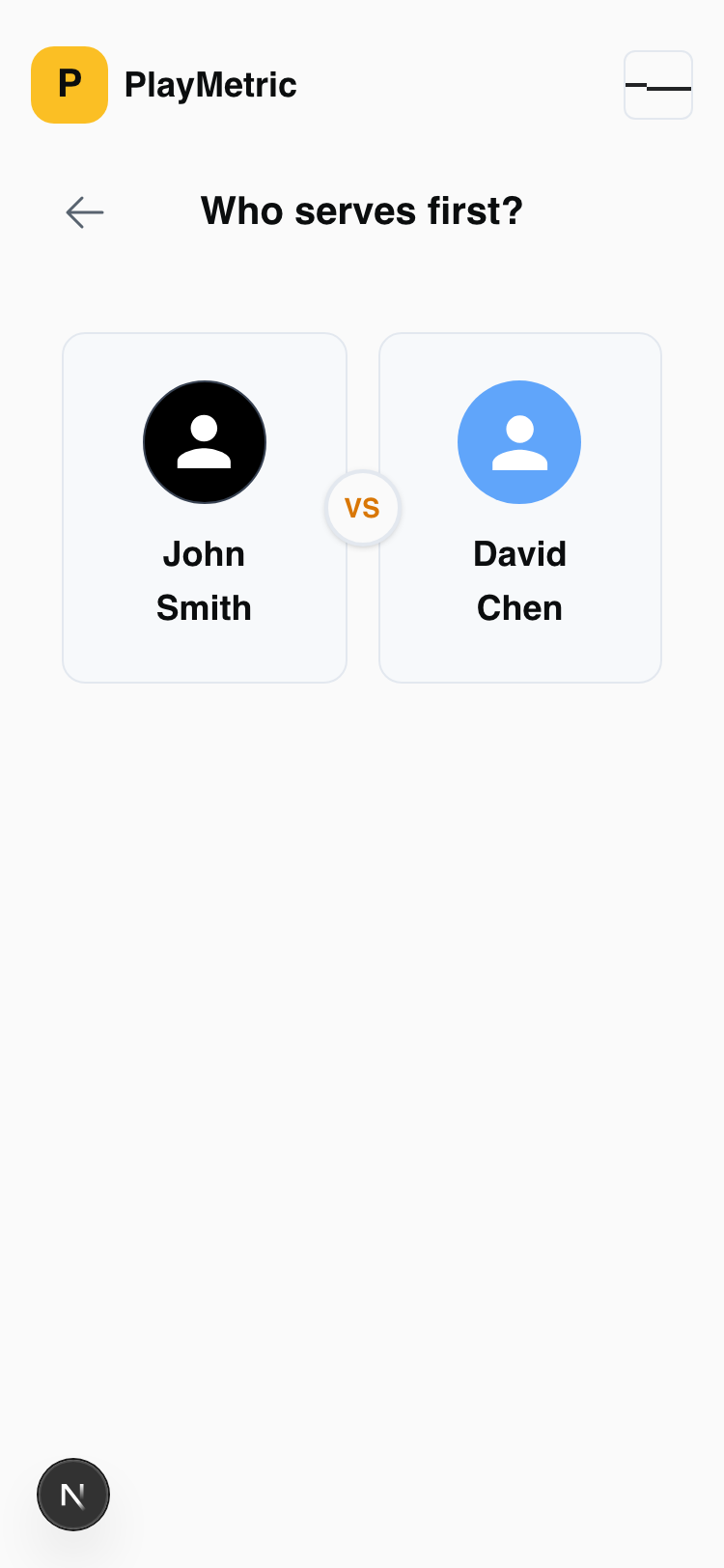
Step 7 Select First Server
Answer "Who serves first?" by clicking on the player who will serve first.
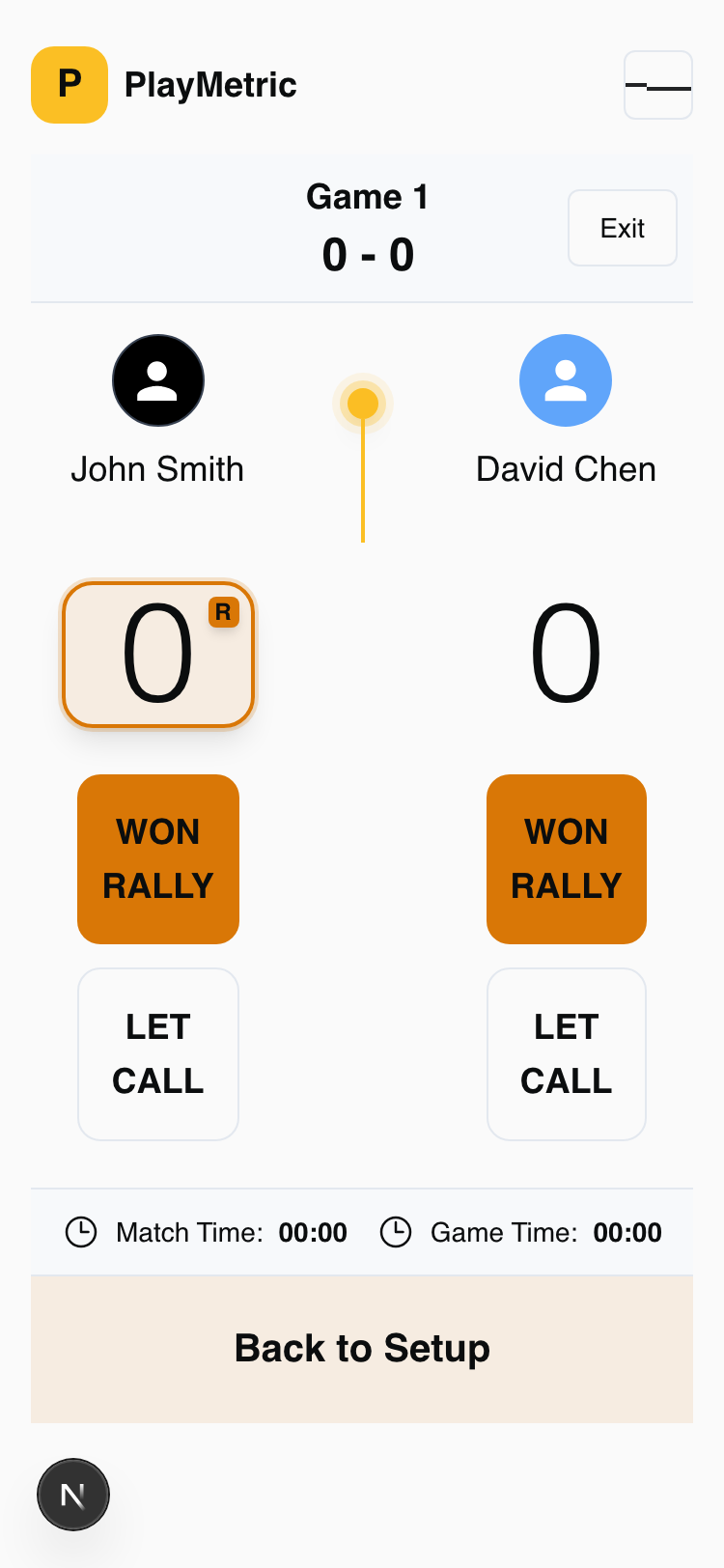
Step 8 Scoring Screen
The main scoring screen will be displayed:
- Large Score Display: Shows current points for each player
- "Rally Win" Buttons: Click when a player wins a point
- "Let" Buttons: Click when a let call occurs
- Center Timeline: Shows point history
Step 9 Change Player Colors (Optional)
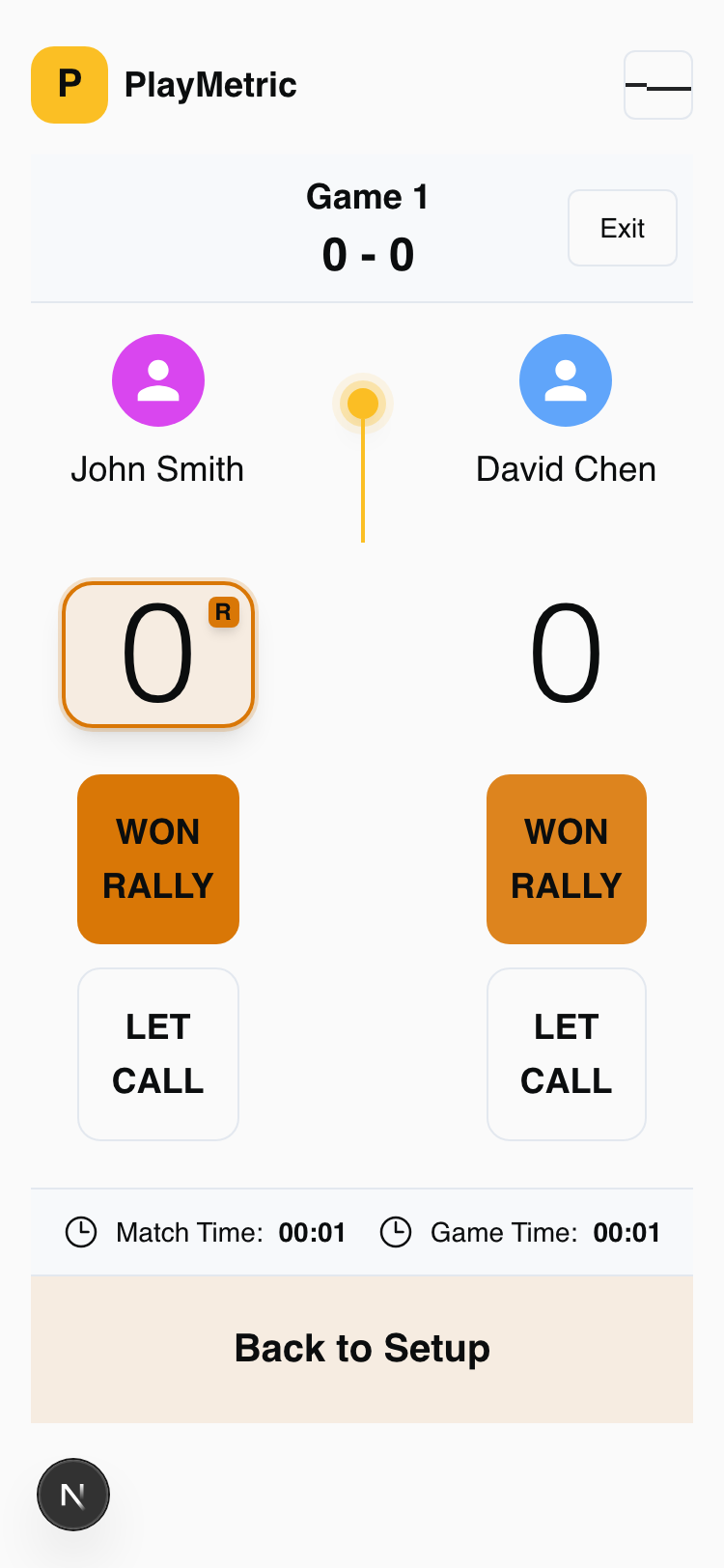
Click on a player's avatar to change their t-shirt color. This helps identify players on court.
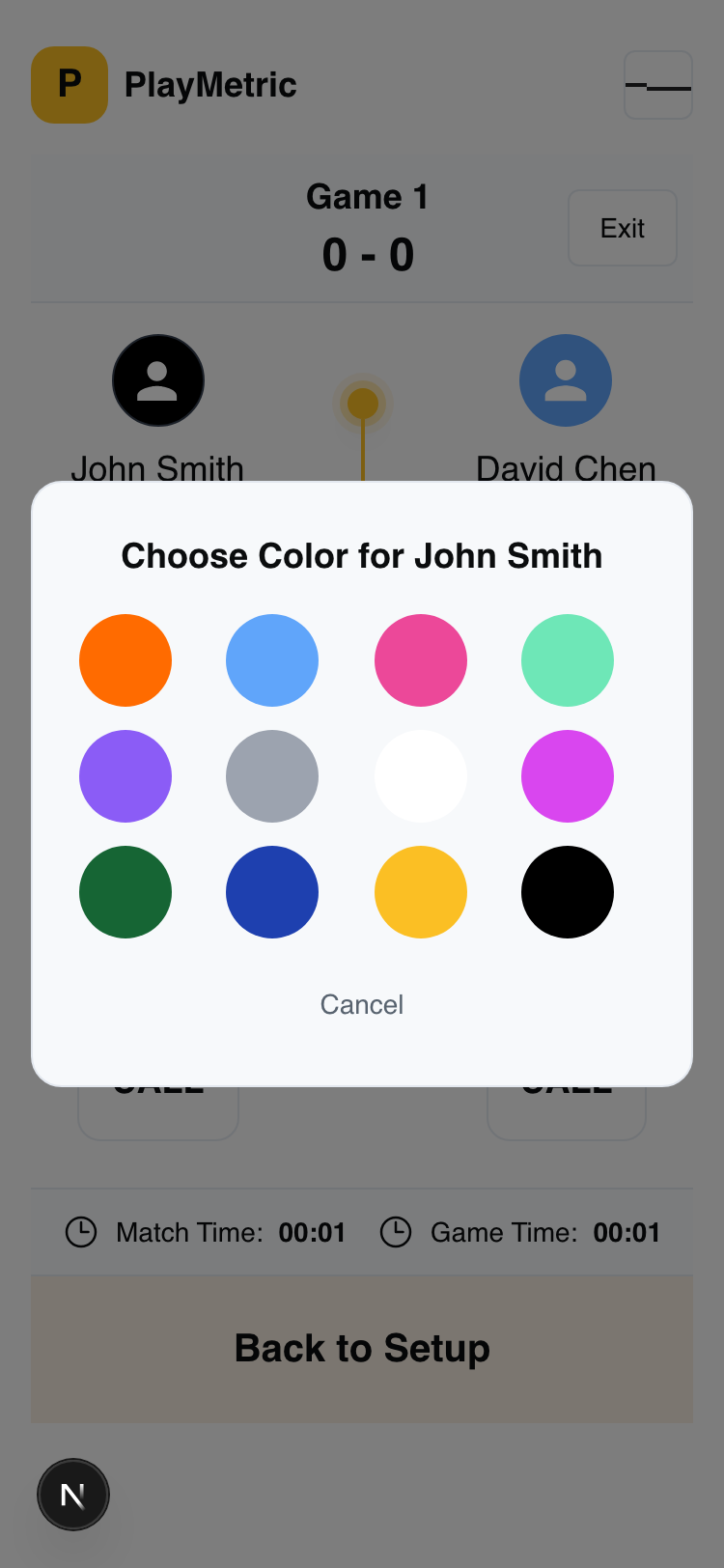
After selecting a color, the player's avatar and scoreboard will update:
Step 10 Record Points
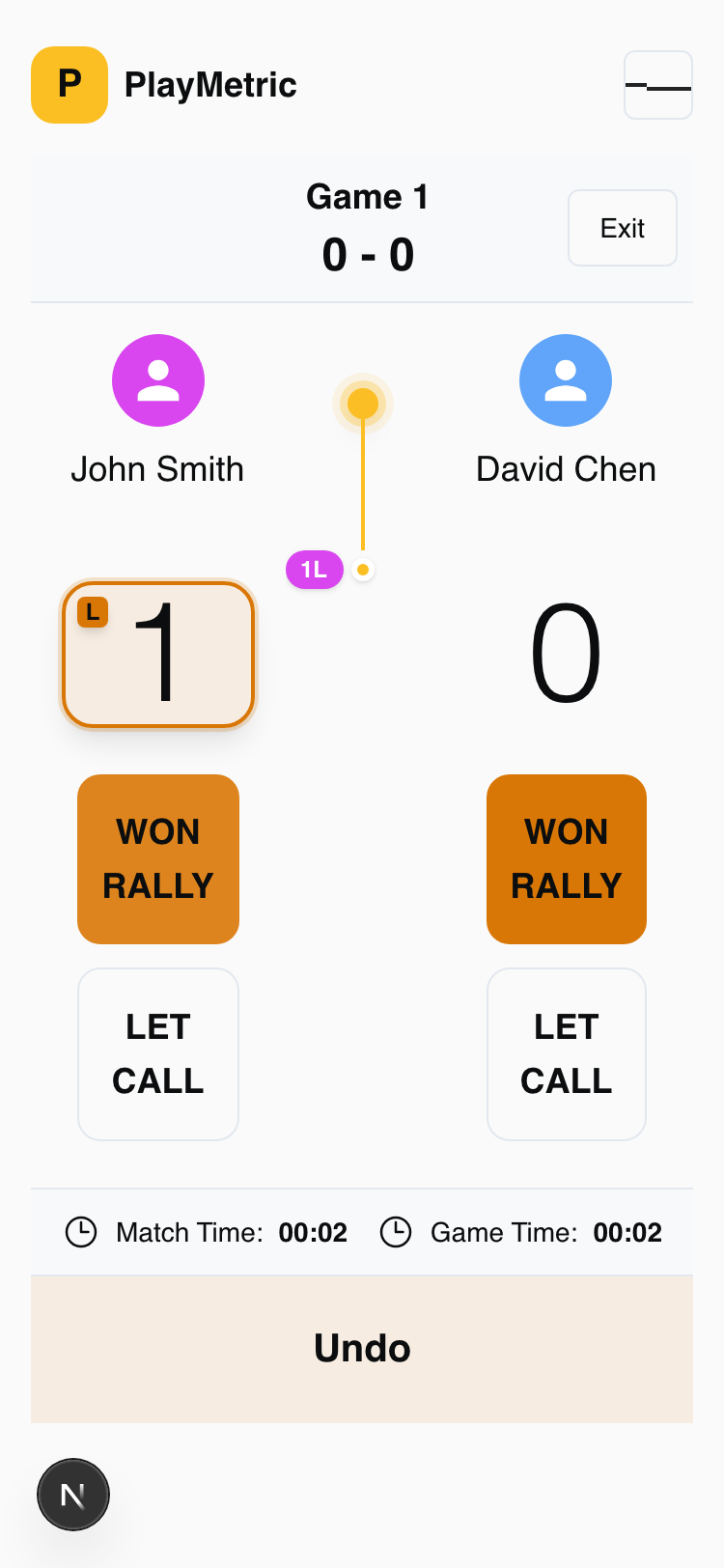
When a rally ends, click the "Rally Win" button for the player who won the point.
Step 11 Undo Function
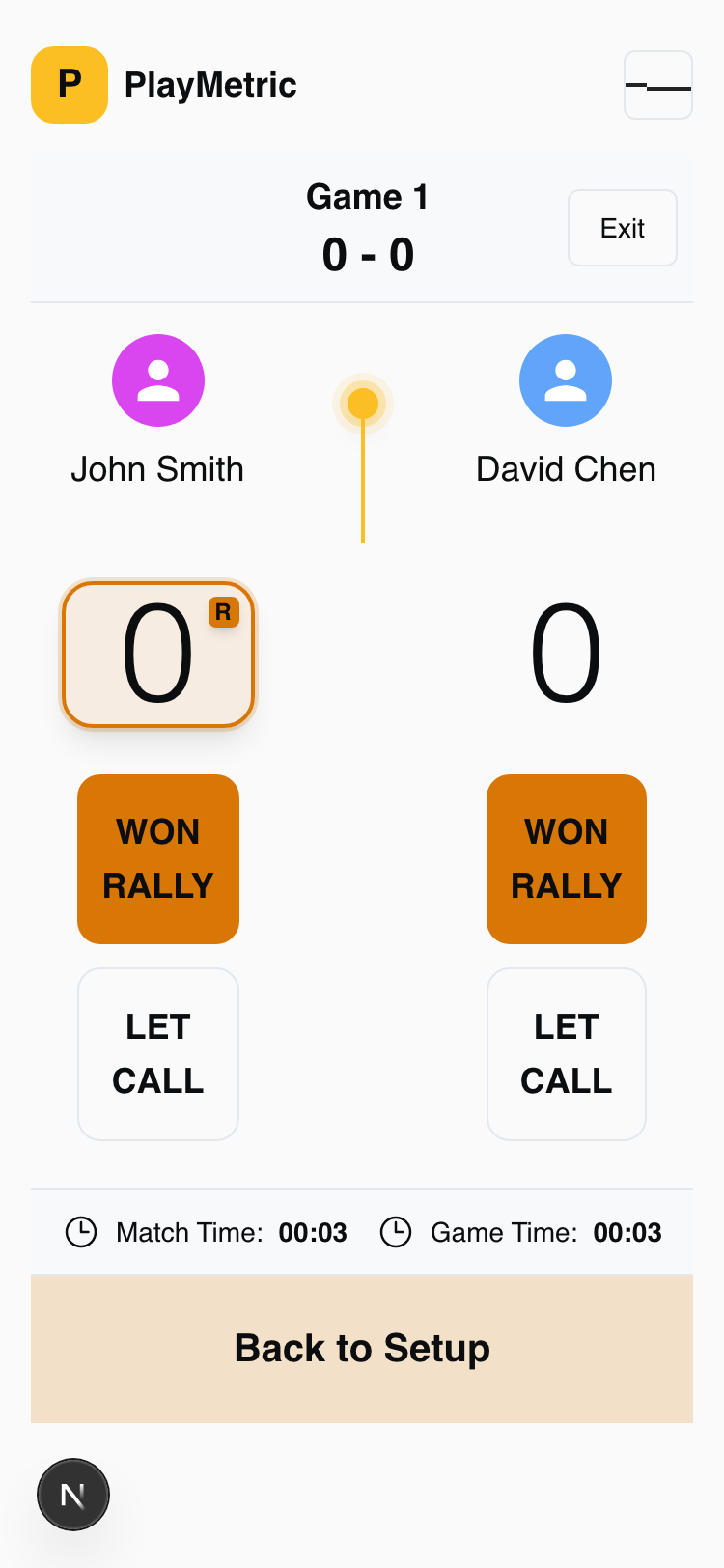
If you make a mistake, click the "Undo" button at the bottom of the screen to reverse the last action.
Step 12 Handle Let Calls
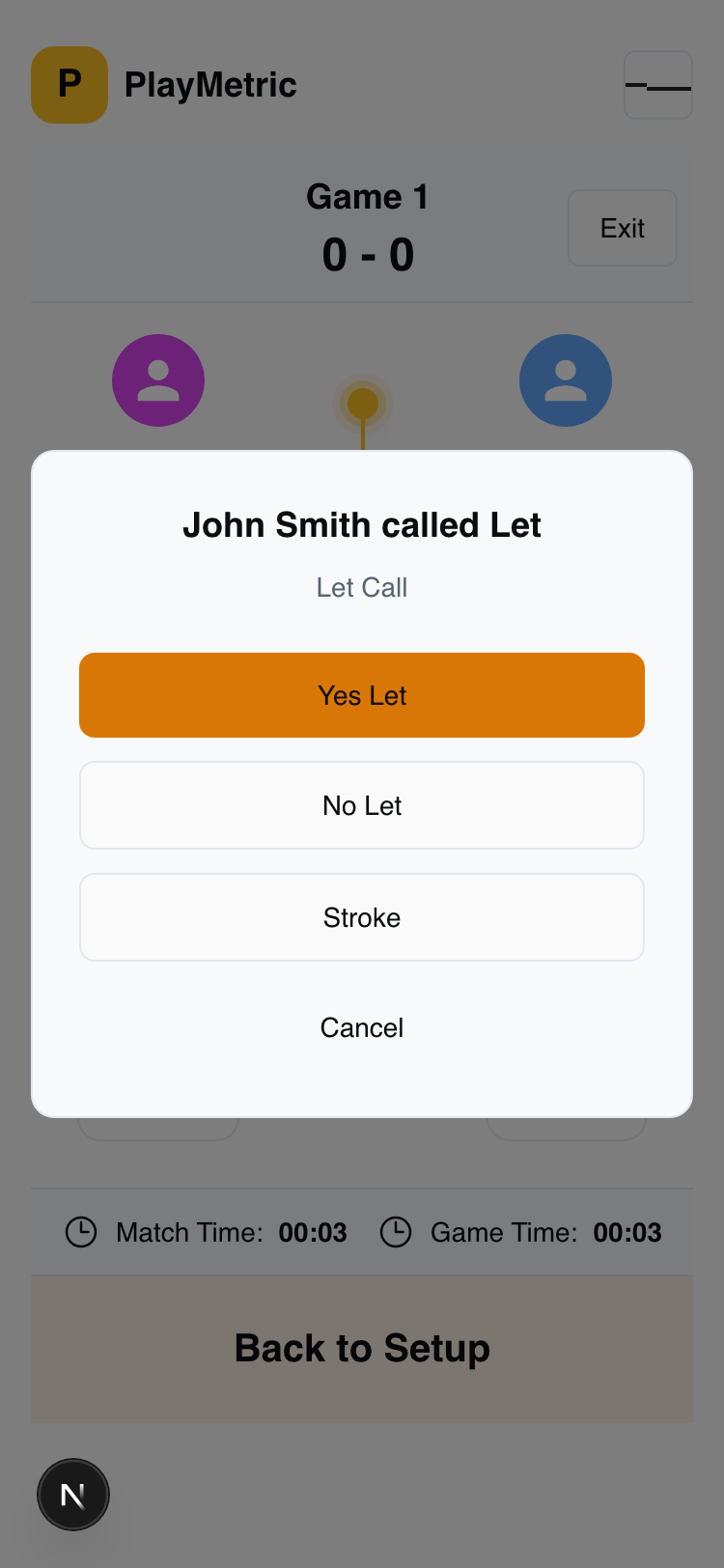
When a player calls a let, click their "Let" button. A decision dialog will appear:
- Yes Let: Accept the let (replay the point)
- No Let: Decline the let (keep the original result)
- Stroke: Award a stroke (give the point)
- Cancel: Cancel
After the decision, the let ruling will be recorded in the timeline (e.g., "YL" = Yes Let):
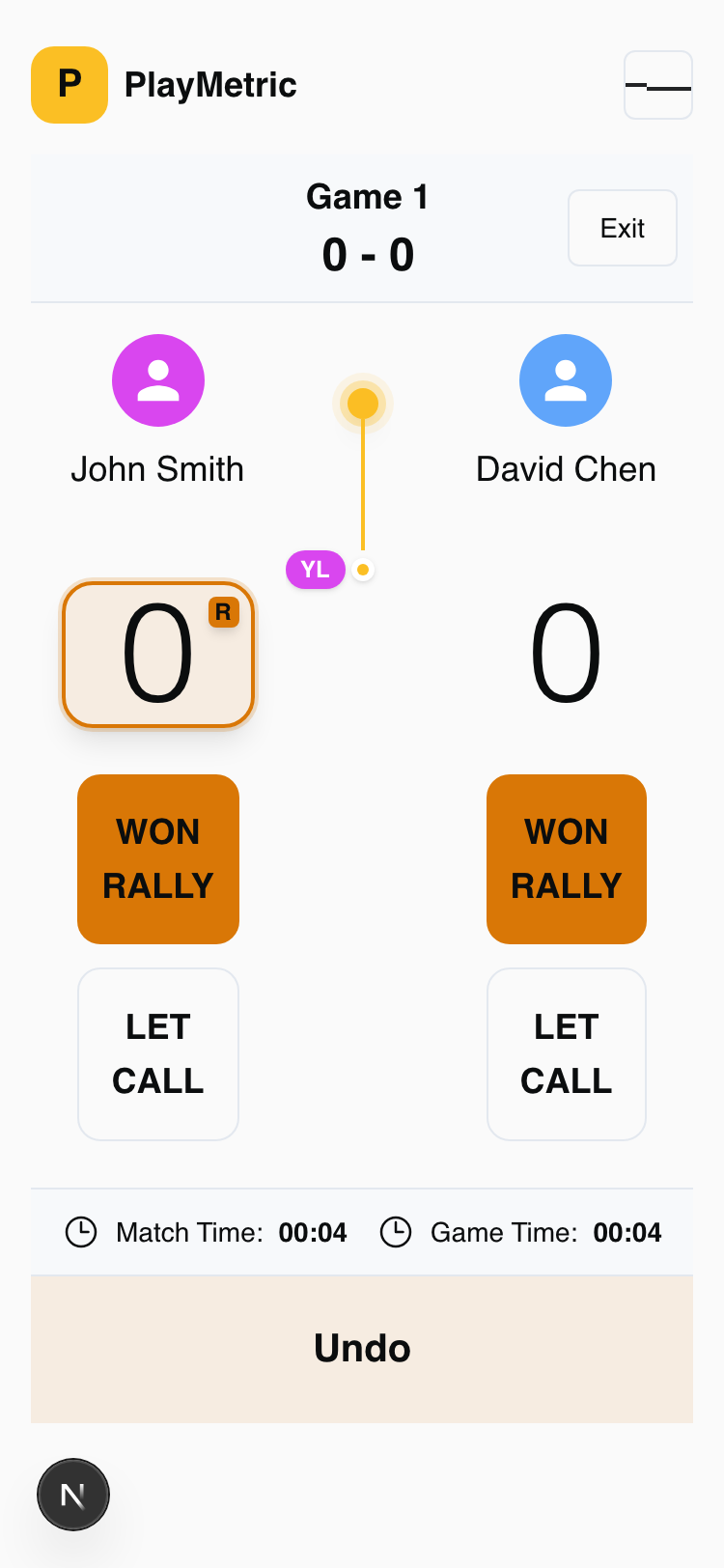
Step 13 Complete and Save Match
When the match ends (e.g., 11-0, 11-0), the system automatically moves to the between-games screen and eventually displays the summary screen.
🎯 Quick Reference
- Record Point: Click "Rally Win" button
- Handle Let: Click "Let" button and select decision
- Fix Mistakes: Click "Undo" button
- Change Colors: Click player avatar
- End Match: Automatically moves to summary screen
❓ Troubleshooting
Q: I gave a point to the wrong player. What should I do?
A: Click the "Undo" button to reverse the last action, then click the correct player's "Rally Win" button.
Q: I need to exit a match midway. What should I do?
A: Click the "Exit" button in the top right. Your progress is automatically saved.
Q: The system seems frozen. What should I do?
A: Refresh the page. You can resume from the last saved state.
✅ Congratulations!
You now understand how to use the PlayPulse scoring system. If you have any questions, please contact your administrator.