Event Emails Guide - PlayMetric
Overview
Event emails let you send announcements and reminders to participants (e.g. draw published, schedule changes). You need an event set up and access to event edit. Open your event, then go to the Emails tab.
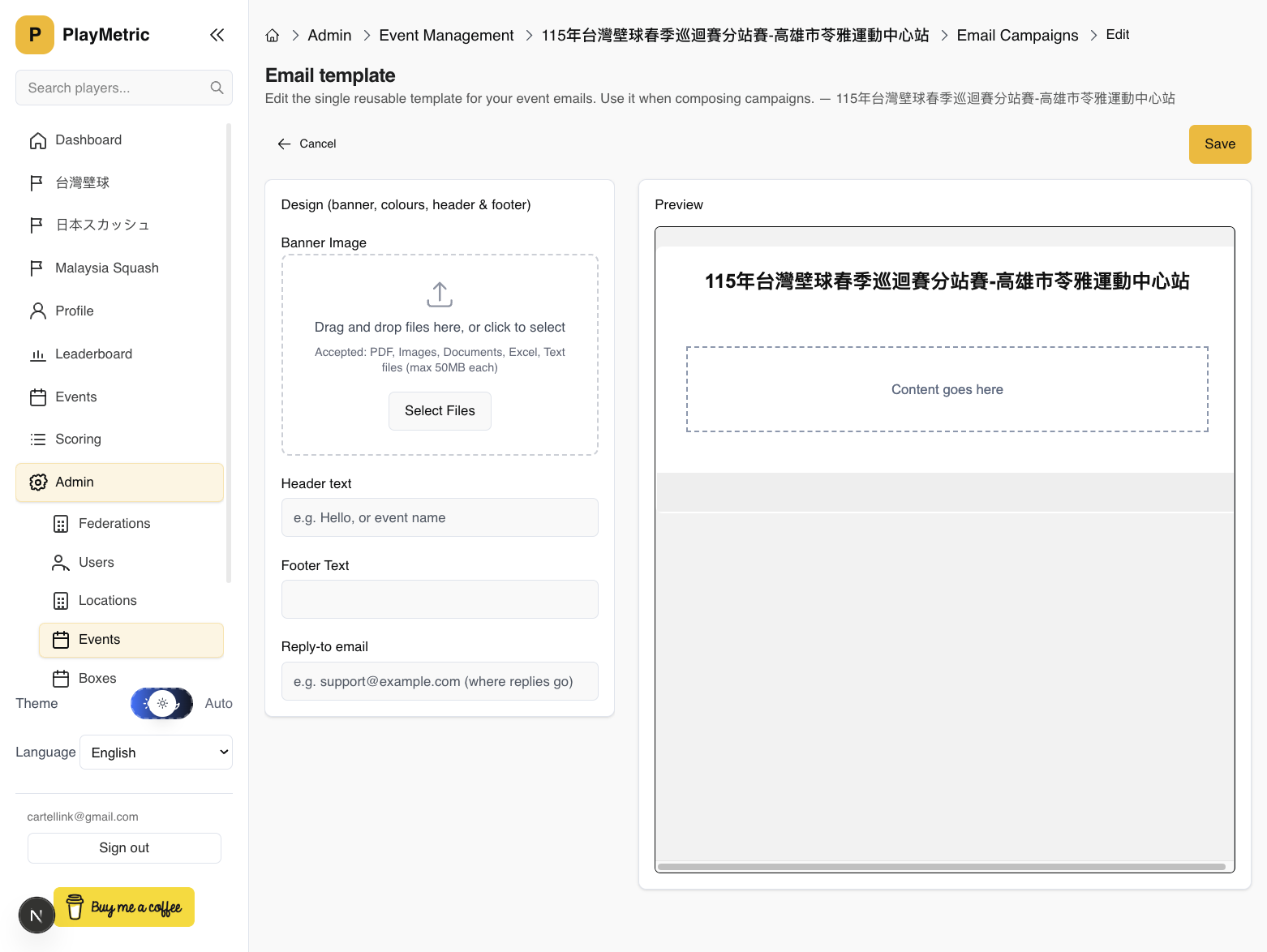
Step 1 Set the reusable template
On the Emails tab, click Edit template. Configure the header, footer, and reply-to address. There is one template per event; all campaigns for that event use it.
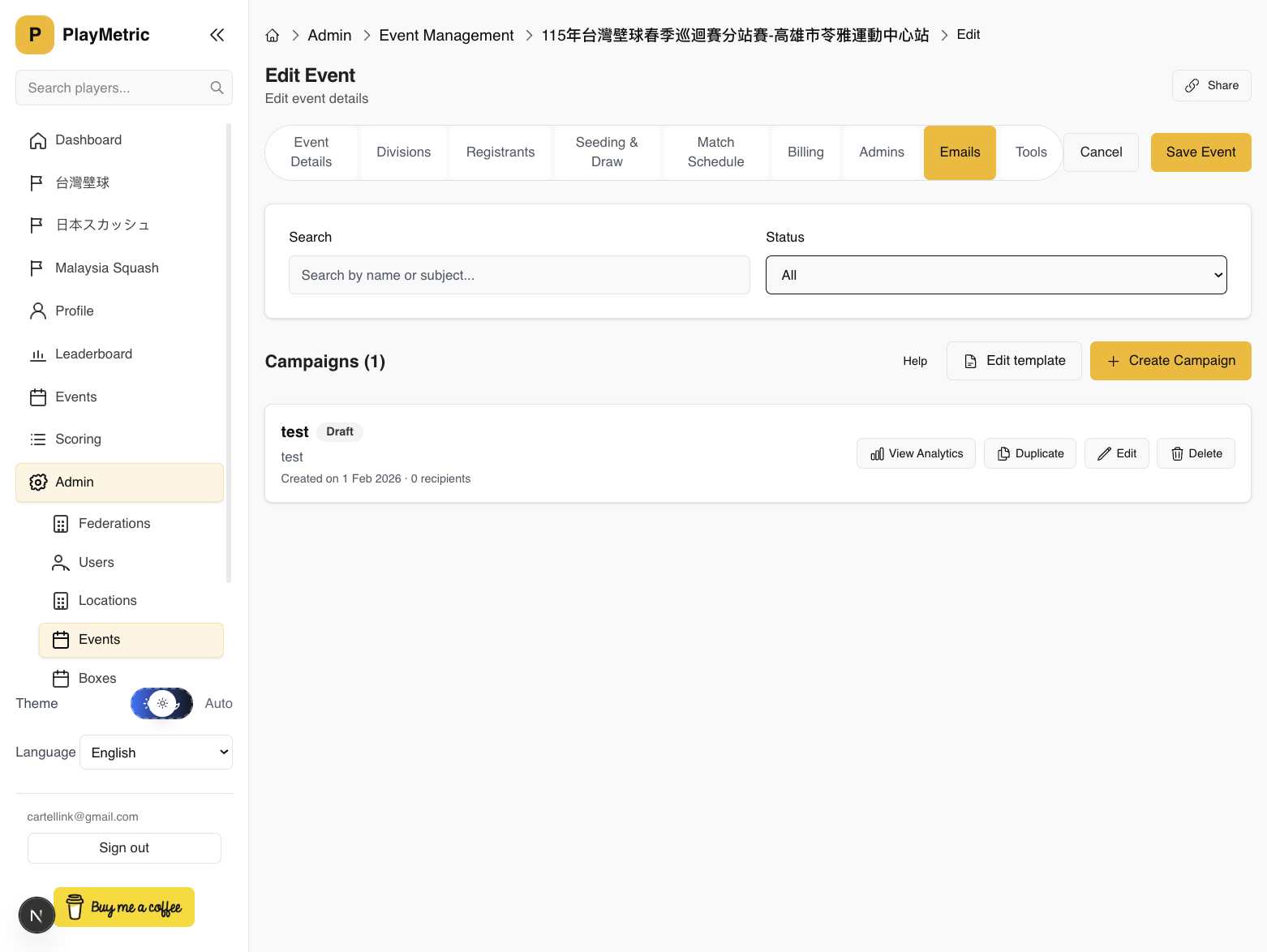
Step 2 Campaign list
From the Emails tab you can create a new campaign, duplicate an existing one, or delete a campaign. Each campaign has a name, subject, status, and audience count.
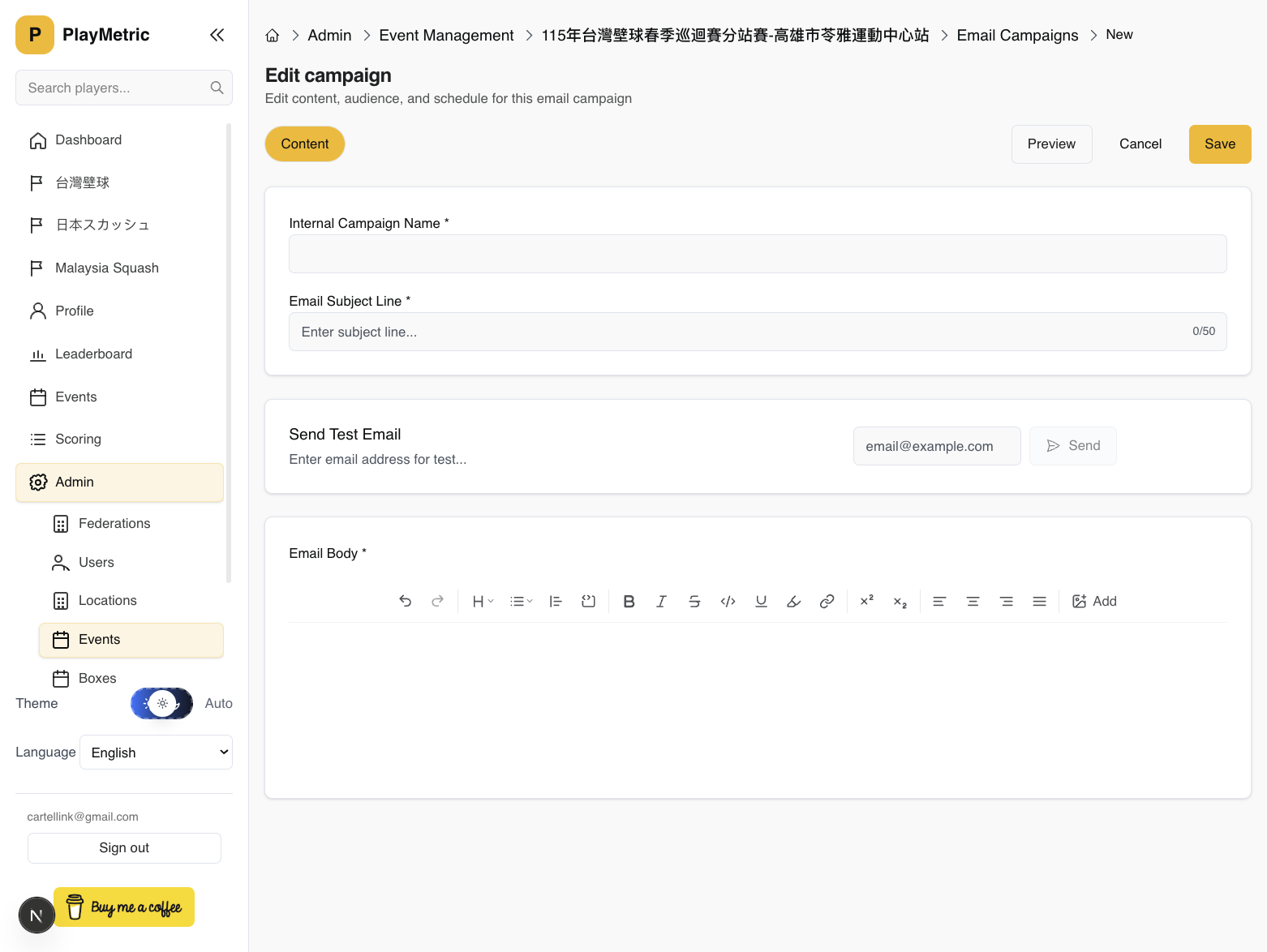
Step 3 Create campaign and content
Create a campaign and fill in the internal name, subject line, and body (rich text). Save the campaign before moving to audience and schedule.
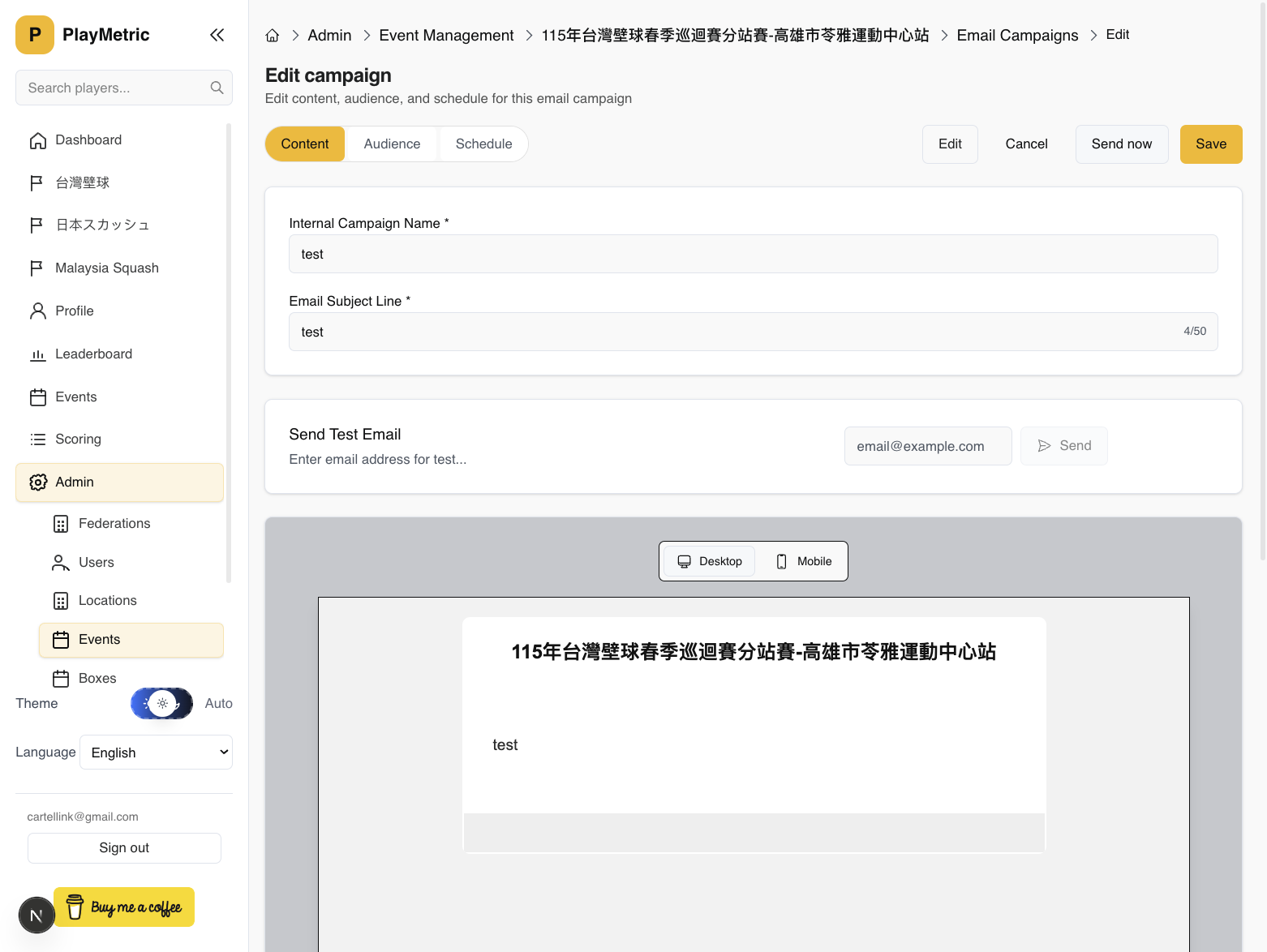
Step 4 Preview and test send
Use the Preview toggle to see how the email looks on desktop or mobile. Enter an email address and click Send to send a test email before sending to the full audience.
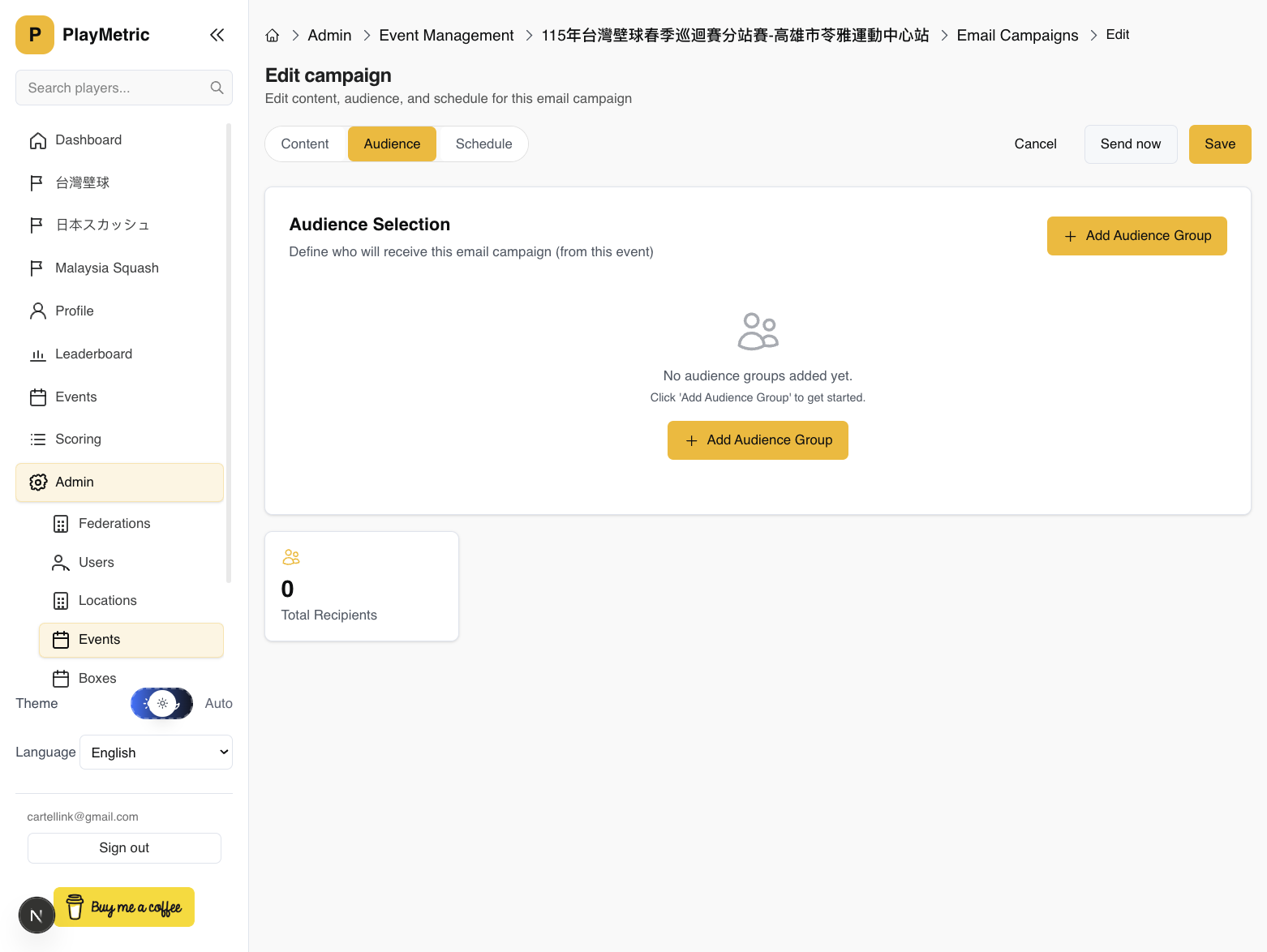
Step 5 Audience
In the Audience tab, add segments (e.g. tournament participants by division, or individuals). Check the recipient count to confirm who will receive the campaign.
Step 6 Schedule or send now
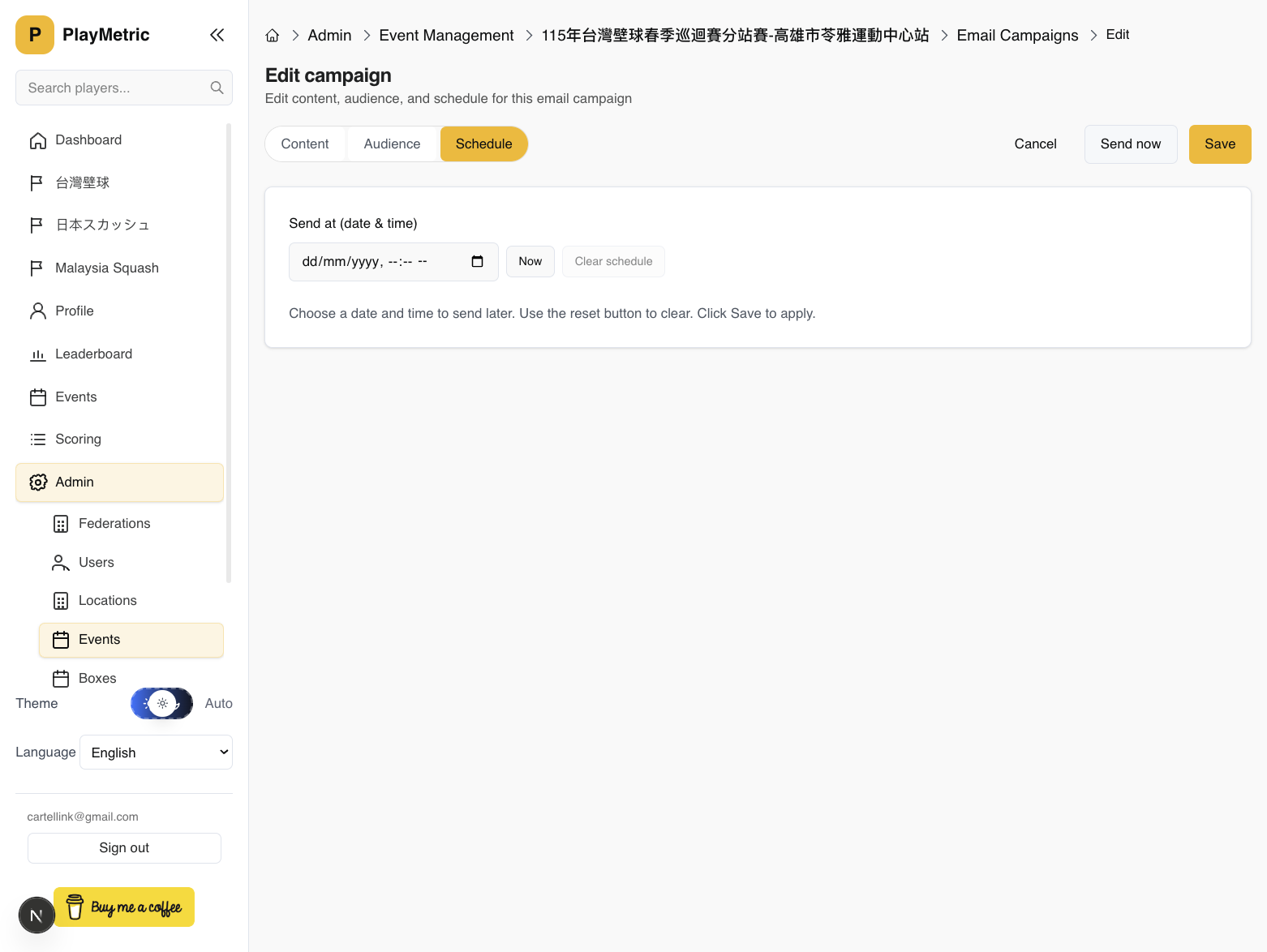
In the Schedule tab, set a date and time for sending, or click Send now to send immediately (after confirming).
Step 7 After sending: stats
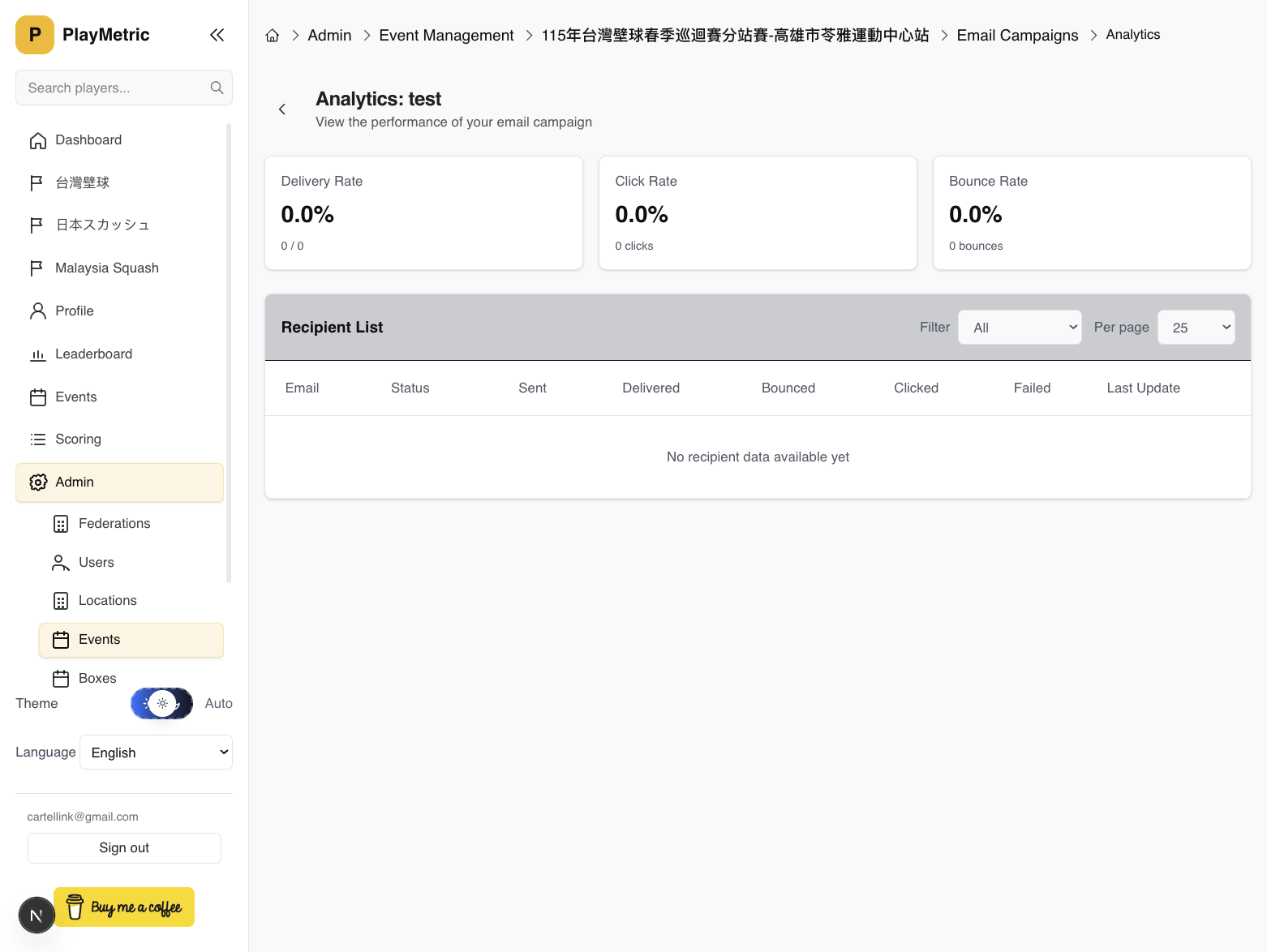
Once a campaign has been sent, open it and go to Analytics. You can see totals (sent, delivered, clicked, bounced, failed) and a filterable list of recipients with their status.
Quick reference
- Template → Edit template (header, footer, reply-to)
- Campaign → Create, then content → preview/test → audience → schedule
- Stats → Open campaign → Analytics
Troubleshooting
Q: No recipients / audience count is zero?
A: Check the Audience tab. Add at least one segment (e.g. tournament participants and select divisions). Save and refresh the count.
Q: Test email not received?
A: Check spam/junk. Ensure the template reply-to is valid. Try another email address.
Q: Stats not updating?
A: Delivery and open/click stats depend on the email provider and webhooks. Allow a short delay after send.
You're all set
You can now use event emails for announcements and reminders. For more help, contact your administrator or support.